Stream a Screen or Camera to Web Browsers over WebRTC, and Publish with WHIP, in C# / .NET
Demo Samples
The browser part of this guide follows the WebRTC Browser Streamer Demo (WPF): a camera and a microphone, a local preview, and a viewer page served by the application. The WHIP part follows the WebRTC WHIP Streamer Demo (WPF) and its Avalonia version for Windows, macOS and Linux.
The block reference is in Sink blocks → WebRTC and Sink blocks → WHIP.
What You Will Build
Two ways to put a live screen, an application window or a camera in front of people who only have a web browser, both with sub-second latency:
- Straight to the browsers, no server.
WebRTCSinkBlockturns your .NET application into a WebRTC server: it serves the viewer page, runs the signalling, and sends every viewer their own WebRTC stream. Nothing to install next to the application. - Through a media server, with WHIP.
WHIPSinkBlockpublishes one stream to a WebRTC media server — MediaMTX, Janus, Cloudflare Stream — over WHIP (WebRTC-HTTP Ingestion Protocol). The server then delivers it to any number of viewers, on the internet as well.
graph LR;
    src["Screen, window or camera<br/>+ microphone"] --> app;
    subgraph app ["Your .NET application"]
        WebRTCSinkBlock;
        WHIPSinkBlock;
    end
    WebRTCSinkBlock -- "WebRTC, VP8 + Opus" --> b1["Browsers on your network"];
    WHIPSinkBlock -- "WHIP: H.264 + Opus" --> server["Media server<br/>MediaMTX, Janus"];
    server -- "WebRTC (WHEP)" --> b2["Browsers anywhere"];
Which one to use:
WebRTCSinkBlock | WHIPSinkBlock | |
|---|---|---|
| Extra software | none | a WebRTC media server |
| Encoding | VP8 and Opus, one encoder per viewer, with per-viewer congestion control | H.264 and Opus, encoded once in your pipeline |
| CPU per extra viewer | one more VP8 encoder | none: the server forwards the stream |
| Viewer page | served by the block, about 100 lines of JavaScript | the server's own player, or any WHEP player |
| Platforms | Windows | Windows, macOS, Linux |
| Typical use | screen sharing and camera views for a few viewers on a local network | publishing to many viewers, or across the internet |
Prerequisites
- Windows x64 for
WebRTCSinkBlock; Windows, macOS or Linux forWHIPSinkBlock. - .NET 10 (.NET 8 or later on Linux).
- Media Blocks SDK .NET version 2026.11.21 or later. That release adds the screen-capture-to-
WebRTCSinkBlockfix this guide relies on; with 2026.11.20,WebRTCSinkBlockplays cameras but a viewer of a Direct3D 11 screen capture never gets a picture. - For WHIP, a WebRTC media server. The examples use MediaMTX, whose default configuration accepts WHIP on port 8889.
NuGet packages:
- VisioForge.DotNet.MediaBlocks — the SDK
- Windows: VisioForge.CrossPlatform.Core.Windows.x64 and VisioForge.CrossPlatform.Core.Windows.Adds.x64 — the GStreamer runtime and the additional plugins,
rswebrtc(both blocks) among them - macOS (WHIP): VisioForge.CrossPlatform.Core.macOS and VisioForge.CrossPlatform.Core.macOS.Adds
- Linux (WHIP):
VisioForge.CrossPlatform.Core.Linux.x64andVisioForge.CrossPlatform.Core.Linux.Adds.x64(.arm64for ARM), plus the distribution's GStreamer withgstreamer1.0-plugins-badandgstreamer1.0-nice
Without the Adds package WebRTCSinkBlock.IsAvailable() and WHIPSinkBlock.IsAvailable() return false. For deployment details see the Deployment Guide.
Part 1: Straight to Browsers with WebRTCSinkBlock
How a viewer connects
WebRTCSinkBlock runs two servers inside your process: a web server for the viewer page and a WebSocket signalling server. The page asks the signalling server for the stream, the block sends a WebRTC offer, and the browser answers. From then on the video goes over the viewer's own WebRTC connection.
sequenceDiagram
    participant Browser
    participant Web as Web server (WebRTCSinkBlock)
    participant Sig as Signalling server (WebRTCSinkBlock)
    Browser->>Web: GET /?signalling=8443
    Web-->>Browser: index.html
    Browser->>Sig: WebSocket: register as a listener, list producers
    Browser->>Sig: start a session with the producer
    Sig-->>Browser: SDP offer (VP8, Opus)
    Browser->>Sig: SDP answer, ICE candidates
    Sig-->>Browser: ICE candidates
    Note over Browser,Sig: ConsumerAdded is raised
    Note over Browser,Sig: the screen or camera plays over the viewer's own WebRTC connection
Every viewer gets its own encoder and its own congestion control, so a viewer on a slow Wi-Fi link gets a lower bitrate without lowering the quality for the others.
The complete program
The console program below sends the primary screen — or, with camera on the command line, the first camera — and the first microphone to every browser that opens http://localhost:8090/?signalling=8443.
using System;
using System.IO;
using System.Threading.Tasks;

using VisioForge.Core;
using VisioForge.Core.MediaBlocks;
using VisioForge.Core.MediaBlocks.Sinks;
using VisioForge.Core.MediaBlocks.Sources;
using VisioForge.Core.Types;
using VisioForge.Core.Types.X.Sinks;
using VisioForge.Core.Types.X.Sources;

// 127.0.0.1 serves this computer only; "0.0.0.0" serves viewers on other computers too.
const string Host = "127.0.0.1";
const int WebPort = 8090;
const int SignallingPort = 8443;

await VisioForgeX.InitSDKAsync();

MediaBlocksPipeline? pipeline = null;

try
{
    if (!WebRTCSinkBlock.IsAvailable())
    {
        Console.WriteLine("WebRTCSinkBlock is not available: add the VisioForge.CrossPlatform.Core.Windows.Adds.x64 package.");
        return;
    }

    pipeline = new MediaBlocksPipeline();
    pipeline.OnError += (s, e) => Console.WriteLine(e.Message);

    // The primary screen by default, the first camera with "camera" on the command line.
    MediaBlock video;
    if (args.Length > 0 && args[0] == "camera")
    {
        var cameras = await DeviceEnumerator.Shared.VideoSourcesAsync();
        if (cameras.Length == 0)
        {
            Console.WriteLine("No camera found.");
            return;
        }

        video = new SystemVideoSourceBlock(new VideoCaptureDeviceSourceSettings(cameras[0]));
    }
    else
    {
        video = new ScreenSourceBlock(new ScreenCaptureD3D11SourceSettings { FrameRate = new VideoFrameRate(30) });
    }

    // Its own signalling server, plus a web server for the viewer page in wwwroot.
    var webrtc = new WebRTCSinkBlock(new WebRTCSinkSettings
    {
        SignallingServerHost = Host,
        SignallingServerPort = SignallingPort,
        WebServerDirectory = Path.Combine(AppContext.BaseDirectory, "wwwroot"),
        WebServerAddress = $"http://{Host}:{WebPort}/"
    });
    webrtc.ConsumerAdded += (s, e) => Console.WriteLine($"Viewer connected: {e.PeerId}");
    webrtc.ConsumerRemoved += (s, e) => Console.WriteLine($"Viewer left: {e.PeerId}");

    // Raw video: the sink encodes it to VP8 for each viewer.
    pipeline.Connect(video.Output, webrtc.CreateNewInput(MediaBlockPadMediaType.Video));

    // The first microphone, if there is one: encoded to Opus for each viewer.
    var microphones = await DeviceEnumerator.Shared.AudioSourcesAsync();
    if (microphones.Length > 0)
    {
        var microphone = new SystemAudioSourceBlock(microphones[0].CreateSourceSettings());
        pipeline.Connect(microphone.Output, webrtc.CreateNewInput(MediaBlockPadMediaType.Audio));
    }

    if (await pipeline.StartAsync())
    {
        Console.WriteLine($"Open http://localhost:{WebPort}/?signalling={SignallingPort} in a browser. Press Enter to stop.");
        Console.ReadLine();
    }
}
catch (Exception ex)
{
    Console.WriteLine(ex.Message);
}
finally
{
    if (pipeline != null)
    {
        await pipeline.StopAsync();
        await pipeline.DisposeAsync();
    }

    VisioForgeX.DestroySDK();
}
Copy the viewer page to the output folder with the build — add this to the .csproj:
<ItemGroup>
  <Content Include="wwwroot\**" CopyToOutputDirectory="PreserveNewest" />
</ItemGroup>
What each part does:
ScreenSourceBlockwithScreenCaptureD3D11SourceSettingscaptures the primary monitor through Direct3D 11 at its native resolution.FrameRatedefaults to 10; 30 makes mouse movement and scrolling smooth.MonitorIndexpicks another monitor.SystemVideoSourceBlockopens a camera.new VideoCaptureDeviceSourceSettings(device)picks its HD format when it has one; setFormatto choose another.WebRTCSinkBlock.CreateNewInputcreates one input per call. Raw video and audio are encoded by the block for each viewer, video to VP8 and audio to Opus. Video already encoded to VP8 (withVPXEncoderBlock) is sent as it is, without an encoder per viewer.WebServerDirectoryturns on the block's web server and points it at the folder withindex.html. Leave itnullto serve the page yourself (see Serving the page from your own web server).SignallingServerHostand the host inWebServerAddressdecide who can connect:127.0.0.1accepts this computer only,0.0.0.0every network interface.ConsumerAdded/ConsumerRemovedreport each viewer that connects and leaves. They are raised on a GStreamer thread: in a UI application marshal to the UI thread, as the demo does withDispatcher.Invoke.ConsumerRemovedis not raised for viewers still connected when the pipeline stops; their sessions end with it.try/finallyreports what went wrong and always stops and disposes the pipeline and callsVisioForgeX.DestroySDK(). WhenStartAsyncreturnsfalse, the reason is in theOnErrormessages — a port already in use is the common one.
The viewer page
The page speaks the signalling protocol of the GStreamer webrtcsink element: JSON messages over a WebSocket. Save it as wwwroot/index.html. It is the WebRTC Browser Streamer Demo's page: it plays the first stream the server announces, retries when the application is not running yet, and starts muted so the browser plays it without a click.
<!DOCTYPE html>
<html lang="en">
<head>
    <meta charset="utf-8">
    <meta name="viewport" content="width=device-width, initial-scale=1">
    <title>VisioForge WebRTC Viewer</title>
    <link rel="icon" href="data:,">
    <style>
        body { margin: 0; background: #111; color: #ddd; font-family: system-ui, sans-serif; display: flex; flex-direction: column; align-items: center; }
        video { width: 100%; max-width: 1280px; max-height: 80vh; background: #000; margin-top: 16px; }
        #bar { margin: 12px 16px; display: flex; gap: 12px; align-items: center; }
        button { padding: 6px 14px; }
    </style>
</head>
<body>
    <video id="video" autoplay playsinline muted></video>
    <div id="bar">
        <button id="unmute">Unmute</button>
        <span id="status">Connecting...</span>
    </div>

    <script>
        // Signalling port of WebRTCSinkBlock: ?signalling=8443 in the page URL.
        const port = new URLSearchParams(location.search).get('signalling') || '8443';
        const video = document.getElementById('video');
        const status = document.getElementById('status');
        let ws, pc, sessionId;

        document.getElementById('unmute').onclick = () => { video.muted = false; };

        function send(msg) { ws.send(JSON.stringify(msg)); }

        function connect() {
            ws = new WebSocket(`ws://${location.hostname}:${port}`);
            ws.onopen = () => send({ type: 'setPeerStatus', roles: ['listener'], meta: null });
            ws.onclose = () => { reset(); status.textContent = 'Disconnected, retrying...'; setTimeout(connect, 2000); };
            ws.onmessage = e => onMessage(e.data).catch(err => fail('Error: ' + err));
        }

        function startSession(peerId) {
            if (sessionId === undefined) {
                sessionId = null;
                send({ type: 'startSession', peerId });
            }
        }

        async function onMessage(data) {
            const msg = JSON.parse(data);
            switch (msg.type) {
                case 'welcome':
                    send({ type: 'list' });
                    break;
                case 'list':
                    if (msg.producers.length > 0) startSession(msg.producers[0].id);
                    else status.textContent = 'Waiting for the stream...';
                    break;
                case 'peerStatusChanged':
                    if (msg.roles.includes('producer')) startSession(msg.peerId);
                    break;
                case 'sessionStarted':
                    sessionId = msg.sessionId;
                    break;
                case 'peer':
                    await onPeer(msg);
                    break;
                case 'endSession':
                    reset();
                    status.textContent = 'Stream ended, waiting...';
                    listLater();
                    break;
                case 'error':
                    fail('Error: ' + msg.details);
                    break;
            }
        }

        async function onPeer(msg) {
            if (msg.sdp && msg.sdp.type === 'offer') {
                // Mirror the sink's StunServer and TurnServers here when it is given them.
                if (pc) { pc.close(); video.srcObject = null; }
                pc = new RTCPeerConnection({ iceServers: [{ urls: 'stun:stun.l.google.com:19302' }] });
                const conn = pc;
                pc.onconnectionstatechange = () => {
                    if (conn === pc && conn.connectionState === 'failed') {
                        video.srcObject = null;
                        fail('Connection lost');
                    }
                };
                pc.ontrack = e => { video.srcObject = e.streams[0] || new MediaStream([e.track]); status.textContent = 'Playing'; };
                pc.onicecandidate = e => {
                    if (e.candidate) send({ type: 'peer', sessionId, ice: { candidate: e.candidate.candidate, sdpMLineIndex: e.candidate.sdpMLineIndex } });
                };
                await pc.setRemoteDescription(msg.sdp);
                const answer = await pc.createAnswer();
                await pc.setLocalDescription(answer);
                send({ type: 'peer', sessionId, sdp: { type: 'answer', sdp: answer.sdp } });
            } else if (msg.ice && pc) {
                await pc.addIceCandidate({ candidate: msg.ice.candidate, sdpMLineIndex: msg.ice.sdpMLineIndex });
            }
        }

        // An error while a stream plays (a stale message, a rejected candidate) leaves it alone;
        // otherwise the session is ended and the producer list asked for again.
        function fail(text) {
            if (video.srcObject) {
                status.textContent = text;
                return;
            }

            if (sessionId) send({ type: 'endSession', sessionId });
            reset();
            status.textContent = text + ', retrying...';
            listLater();
        }

        // Asks for the producer list again after a pause, so a failing session does not retry in a tight loop.
        function listLater() {
            const socket = ws;
            setTimeout(() => { if (ws === socket && ws.readyState === WebSocket.OPEN) send({ type: 'list' }); }, 2000);
        }

        function reset() {
            if (pc) pc.close();
            pc = undefined;
            sessionId = undefined;
            video.srcObject = null;
        }

        connect();
    </script>
</body>
</html>
The exchange, step by step:
- Register as a listener. The page opens a WebSocket to the signalling port and sends
setPeerStatuswith thelistenerrole, then asks for thelistof producers. Your application is the producer. - Start a session. The page sends
startSessionwith the producer's ID; a producer that appears later is announced withpeerStatusChanged, so the page can be opened before the application starts. - Answer the offer. The block sends the SDP offer in a
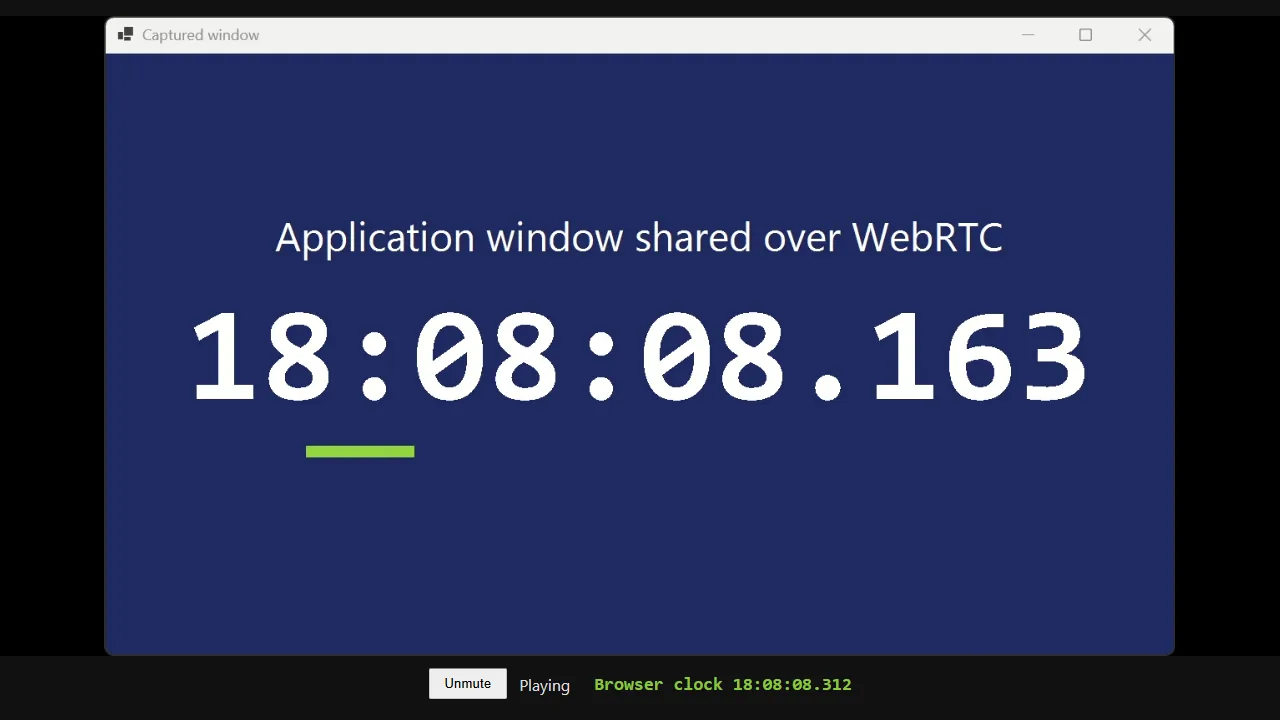
peermessage; the page creates anRTCPeerConnection, answers, and both sides exchange ICE candidates in furtherpeermessages. - Play.
ontrackhands the stream to the<video>element. The status showsPlaying; Unmute turns the sound on, because browsers play a muted video without a click and an unmuted one only after it. - Recover. When the connection fails or the application stops, the page resets and asks for the list again, so it reconnects by itself when the stream comes back.
Share one window instead of the whole screen
Set WindowHandle to capture a single application window through Windows Graphics Capture. The window is captured even when other windows cover it, and the rest of the desktop stays private:
var screen = new ScreenCaptureD3D11SourceSettings
{
    FrameRate = new VideoFrameRate(30),
    WindowHandle = windowHandle // HWND of the window to share, for example Process.MainWindowHandle
};

var video = new ScreenSourceBlock(screen);
The stream takes the window's size when the capture starts. A minimized window gives no frames until it is restored.
Serving the page from your own web server
The block's web server is optional. With WebServerDirectory left null, only the signalling server runs; put index.html in your own site (ASP.NET Core, IIS, nginx) and pass the signalling port in the query string. The page connects to ws://<the page's host>:<port>, so the signalling server must be reachable on the same host name as the page.
Viewers on other computers
- Set
Hostto"0.0.0.0", so both servers listen on every network interface. - Allow the web port and the signalling port (8090 and 8443 here) through Windows Defender Firewall, and the application itself for the WebRTC media, which uses UDP ports chosen at run time.
- Open
http://<this computer's address>:8090/?signalling=8443on the other computer.
Receiving WebRTC needs no HTTPS, so plain http:// works on a local network. WebRTCSinkSettings has no authentication setting: anyone who can reach the two ports can watch. Keep 127.0.0.1 when the stream should not leave the computer, and use WHIP with a media server that checks tokens when it must reach the internet.
Part 2: Publish to a Media Server with WHIPSinkBlock
The pipeline
WHIP takes encoded H.264 video and Opus audio. The pipeline encodes once; the media server forwards the stream to every viewer.
graph LR;
    ScreenSourceBlock -- "raw video" --> H264EncoderBlock;
    SystemAudioSourceBlock -- "raw audio" --> OPUSEncoderBlock;
    H264EncoderBlock -- H.264 --> WHIPSinkBlock;
    OPUSEncoderBlock -- Opus --> WHIPSinkBlock;
    WHIPSinkBlock -- "WHIP (HTTP + WebRTC)" --> MediaMTX;
The complete program
The console program publishes the primary screen and the first microphone to http://<server>:8889/screen/whip, MediaMTX's WHIP endpoint for a stream named screen. Pass another endpoint on the command line. The screen is captured with ScreenCaptureD3D11SourceSettings, so this program builds for Windows; on macOS use ScreenCaptureMacOSSourceSettings, on Linux ScreenCaptureXDisplaySourceSettings, or a camera, as the Avalonia demo does.
using System;
using System.Threading.Tasks;

using VisioForge.Core;
using VisioForge.Core.MediaBlocks;
using VisioForge.Core.MediaBlocks.AudioEncoders;
using VisioForge.Core.MediaBlocks.Sinks;
using VisioForge.Core.MediaBlocks.Sources;
using VisioForge.Core.MediaBlocks.VideoEncoders;
using VisioForge.Core.Types;
using VisioForge.Core.Types.X.AudioEncoders;
using VisioForge.Core.Types.X.Sinks;
using VisioForge.Core.Types.X.Sources;
using VisioForge.Core.Types.X.VideoEncoders;

// The media server's WHIP endpoint; MediaMTX takes http://<server>:8889/<stream name>/whip.
var whipUrl = args.Length > 0 ? args[0] : "http://192.168.1.10:8889/screen/whip";

await VisioForgeX.InitSDKAsync();

MediaBlocksPipeline? pipeline = null;

try
{
    if (!WHIPSinkBlock.IsAvailable())
    {
        Console.WriteLine("WHIPSinkBlock is not available: add the VisioForge.CrossPlatform.Core.*.Adds package for this platform.");
        return;
    }

    pipeline = new MediaBlocksPipeline();
    pipeline.OnError += (s, e) => Console.WriteLine(e.Message);

    var screen = new ScreenSourceBlock(new ScreenCaptureD3D11SourceSettings { FrameRate = new VideoFrameRate(30) });

    // WHIP carries H.264 video and Opus audio: encode once here, the server serves every viewer.
    var h264 = new H264EncoderBlock(new OpenH264EncoderSettings());
    var whip = new WHIPSinkBlock(new WHIPSinkSettings { Location = whipUrl });

    pipeline.Connect(screen.Output, h264.Input);
    pipeline.Connect(h264.Output, whip.CreateNewInput(MediaBlockPadMediaType.Video));

    var microphones = await DeviceEnumerator.Shared.AudioSourcesAsync();
    if (microphones.Length > 0)
    {
        var microphone = new SystemAudioSourceBlock(microphones[0].CreateSourceSettings());
        var opus = new OPUSEncoderBlock(new OPUSEncoderSettings());
        pipeline.Connect(microphone.Output, opus.Input);
        pipeline.Connect(opus.Output, whip.CreateNewInput(MediaBlockPadMediaType.Audio));
    }

    if (await pipeline.StartAsync())
    {
        Console.WriteLine($"Publishing to {whipUrl}. Press Enter to stop.");
        Console.ReadLine();
    }
}
catch (Exception ex)
{
    Console.WriteLine(ex.Message);
}
finally
{
    if (pipeline != null)
    {
        await pipeline.StopAsync();
        await pipeline.DisposeAsync();
    }

    VisioForgeX.DestroySDK();
}
What each part does:
H264EncoderBlockwithOpenH264EncoderSettingsencodes in software, on every Windows computer, in the Constrained Baseline profile that every browser decodes. On a computer with an NVIDIA, AMD or Intel GPU, a hardware encoder's settings (NVENCH264EncoderSettings,AMFH264EncoderSettings,QSVH264EncoderSettings) take the encoding off the CPU.OPUSEncoderBlockencodes the microphone to Opus, the audio codec of WebRTC.WHIPSinkBlock.CreateNewInputcreates the video and the audio input. The block adds the RTP packaging itself, so the encoders connect to it directly. Audio is optional: without a microphone the stream is video only.WHIPSinkSettings.Locationis the WHIP endpoint. OnStartAsyncthe block posts its SDP offer there, the server answers, and the media flows over WebRTC. On stop the block deletes the session on the server.
Watching the stream
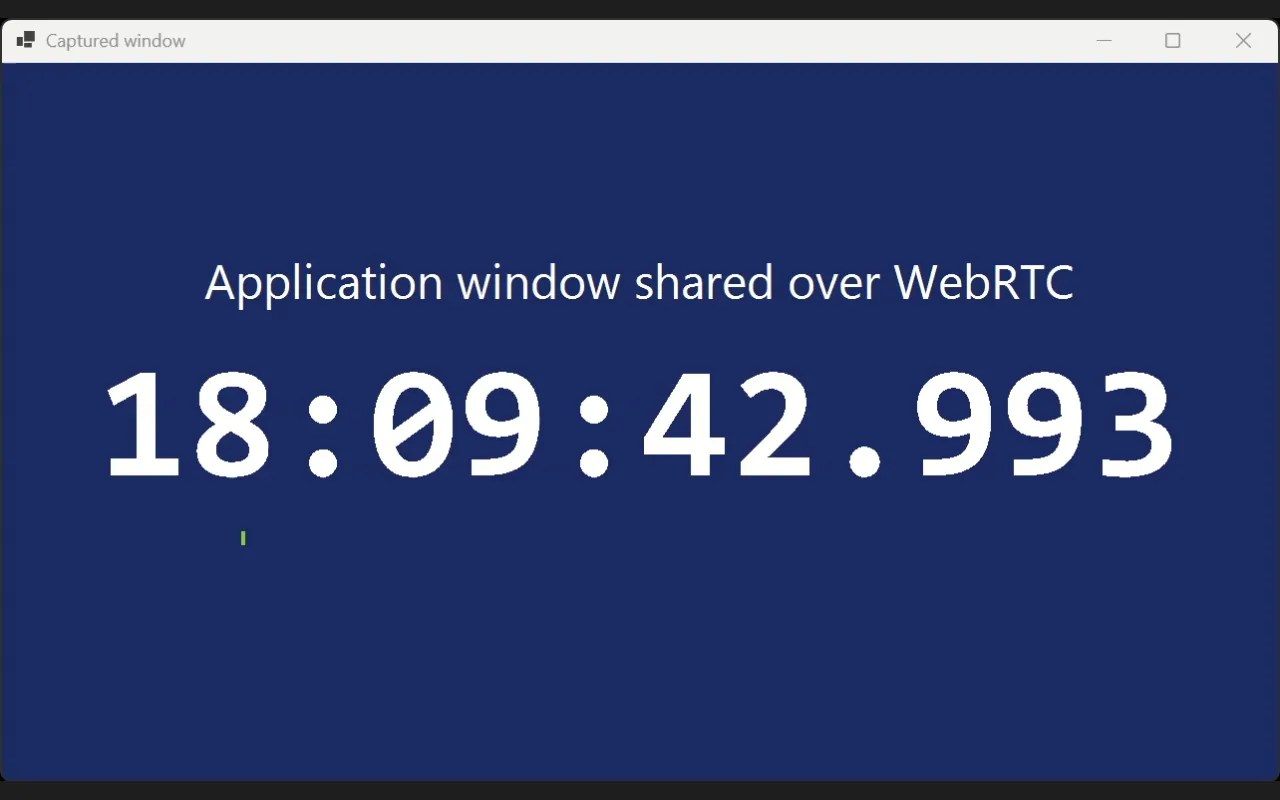
MediaMTX serves its own player for every stream at http://<server>:8889/<stream name>/ — here http://<server>:8889/screen/. Any WHEP player can read it too, from http://<server>:8889/screen/whep, including the SDK's own WHEPSourceBlock.
Authentication, STUN and TURN
var whip = new WHIPSinkBlock(new WHIPSinkSettings
{
    Location = "https://media.example.com/live/whip",
    AuthToken = "secret-token",                     // sent as "Authorization: Bearer secret-token"
    StunServer = "stun://stun.l.google.com:19302",
    TurnServer = "turn://user:password@turn.example.com:3478"
});
AuthToken— the bearer token of services that require one (Cloudflare Stream, a Janus or MediaMTX server with authentication).StunServer/TurnServer— the publisher's side of NAT traversal. Unset, the block uses no STUN server, which is enough when the application and the server are on the same network.UseLinkHeaders(on by default) also takes the ICE servers the WHIP server announces in itsLinkheaders.IceTransportPolicy = WHIPIceTransportPolicy.Relaysends everything through the TURN server, for networks that block direct UDP.Timeout(15 seconds by default) bounds every WHIP HTTP request, including the session'sDELETEon stop.
Both from One Capture
One capture can feed both outputs at the same time: viewers on the local network get the stream straight from the application, and the media server gets the WHIP stream for everyone else. TeeBlock splits the video:
var tee = new TeeBlock(2, MediaBlockPadMediaType.Video);
pipeline.Connect(screen.Output, tee.Input);

// Local viewers: raw video, encoded per viewer to VP8.
pipeline.Connect(tee.Outputs[0], webrtc.CreateNewInput(MediaBlockPadMediaType.Video));

// The media server: H.264, encoded once.
pipeline.Connect(tee.Outputs[1], h264.Input);
pipeline.Connect(h264.Output, whip.CreateNewInput(MediaBlockPadMediaType.Video));
TeeBlock is in VisioForge.Core.MediaBlocks.Special. The two outputs start and stop together: a WHIP server that cannot be reached fails the start of the whole pipeline. Put them in two pipelines when the local stream must keep running without the server.
Limits to Know Before Shipping
Platforms
WebRTCSinkBlock runs on Windows x64 with VisioForge.CrossPlatform.Core.Windows.Adds.x64. WHIPSinkBlock runs on Windows, macOS and Linux with the platform's Adds package; on Linux it also needs the distribution's gstreamer1.0-plugins-bad and gstreamer1.0-nice. Check IsAvailable() at startup, as both programs do.
Codecs
WebRTCSinkBlock sends VP8 video and Opus audio, which every current browser plays. It takes raw video and audio, or VP8 and Opus already encoded; it does not take H.264. WHIPSinkBlock takes H.264 and Opus only.
CPU and resolution
WebRTCSinkBlock runs a software VP8 encoder per viewer. In our tests on one Windows computer, a 1080p camera and a 1902×1131 window played at 30 frames per second, while a whole 3840×2160 monitor reached about 20 frames per second in the browser. For a 4K screen, scale the video down before the sink with VideoResizeBlock (namespace VisioForge.Core.MediaBlocks.VideoProcessing):
var resize = new VideoResizeBlock(1920, 1080);
pipeline.Connect(screen.Output, resize.Input);
pipeline.Connect(resize.Output, webrtc.CreateNewInput(MediaBlockPadMediaType.Video));
For more than a handful of viewers, publish once with WHIP and let the media server serve them.
Bitrate
StartBitrate (2 Mbit/s) is where each viewer starts; congestion control (CongestionControl, Google Congestion Control by default) raises it up to MaxBitrate (8 Mbit/s) while the network keeps up and lowers it when it does not. Raise MaxBitrate for sharp text on a large screen; set CongestionControl = WebRTCSinkCongestionControl.Disabled to hold every viewer at StartBitrate.
Ports
The defaults are 8443 for signalling and 8080 for the web server. When a port is taken, StartAsync returns false and OnError says which port. The programs in this guide use 8090 for the page.
NAT, STUN and TURN
On a local network no STUN server is needed. For viewers behind other networks, set StunServer and TurnServers in WebRTCSinkSettings (StunServer defaults to stun://stun.l.google.com:19302) and the same servers in the page's iceServers list. Across the internet, WHIP to a media server with a public address is usually the simpler route.
Troubleshooting
| Symptom | Cause and fix |
|---|---|
IsAvailable() returns false | The platform's Adds package is not referenced, or on Linux gstreamer1.0-plugins-bad and gstreamer1.0-nice are missing. |
StartAsync returns false, OnError says the web server cannot listen | The web port is in use by another program. Choose another WebServerAddress port, or stop the other program. |
The page says Disconnected, retrying... | The signalling server is not reachable: the application is not running, the ?signalling= port is wrong, or the firewall blocks it. |
The page says Waiting for the stream... | The page reached the signalling server, but the pipeline is not playing yet. Check StartAsync and the OnError messages. |
The page says Playing but there is no sound | The video starts muted. Press Unmute. |
A viewer on another computer stays at Connection lost | The WebRTC media is blocked: allow the application through the firewall, or set STUN/TURN on both sides. |
| A Direct3D 11 screen capture never plays in the browser, the page keeps reconnecting | Media Blocks SDK .NET 2026.11.20 or earlier. Update to 2026.11.21 or later. |
| The screen plays at a low frame rate | A 4K screen is encoded per viewer in software. Scale it to 1080p with VideoResizeBlock, or publish with WHIP. |
WHIP: StartAsync returns false or OnError reports an HTTP error | The endpoint is wrong, the server is down, or it refused the token. Open the same URL's player page in a browser to check the server. |
WHIP: the stream reaches the server but stays black or ICE failed | UDP between the application and the server is blocked. Allow the server's WebRTC UDP port (8189 on MediaMTX), or set a TURN server with IceTransportPolicy = Relay. |
Frequently Asked Questions
Do I need a media server to show my screen in a browser?
No. WebRTCSinkBlock serves the page, runs the signalling and streams to each browser from your process. A media server earns its place when there are many viewers or they are on the internet; then publish to it with WHIPSinkBlock.
Why VP8 for browsers and H.264 for WHIP?
WebRTCSinkBlock encodes per viewer and uses VP8, which every browser decodes and which the block can adapt to each viewer's bandwidth. WHIP servers such as MediaMTX forward one stream to all viewers without re-encoding, so the stream must already be in a codec they accept; H.264 is the one every server and browser takes.
How many viewers can WebRTCSinkBlock serve?
Each viewer costs one VP8 encoder. A 1080p stream runs a handful of viewers on a desktop CPU; at 4K the first viewer is already the limit. For more viewers, publish once with WHIP.
Can I add audio?
Yes. Connect a raw audio source to CreateNewInput(MediaBlockPadMediaType.Audio) of WebRTCSinkBlock — it encodes Opus per viewer — or an OPUSEncoderBlock output to the audio input of WHIPSinkBlock.
Does it work on macOS and Linux?
WHIPSinkBlock does, on Windows, macOS and Linux. WebRTCSinkBlock is Windows-only; on macOS and Linux publish with WHIP, or serve cameras with WHEPServerSinkBlock.
Can a browser play the WHIP stream without the media server's page?
Yes. The server exposes the stream over WHEP, and a page with about 20 lines of JavaScript plays it — the player in RTSP Cameras in a Browser with WHEP works against MediaMTX's /whep URL.
See Also
- Sink blocks → WebRTC —
WebRTCSinkBlockandWebRTCSinkSettingsreference - Sink blocks → WHIP —
WHIPSinkBlockandWHIPSinkSettingsreference - RTSP Cameras in a Browser with WHEP — IP cameras on a web page without re-encoding
- Screen Source Block — screen, window and monitor capture settings
- Pre-Event Recording — keep the seconds before an event while you stream