Install VisioForge media SDKs in Unity
Media Blocks SDK .Net Media Player SDK .Net Video Capture SDK .Net Video Edit SDK .Net
This guide walks through installing the VisioForge media SDKs in Unity 6. A single, fully self-contained .unitypackage brings four products into Unity at once — the Media Blocks SDK .NET pipeline plus the high-level Media Player SDK .NET (MediaPlayerCoreX), Video Capture SDK .NET (VideoCaptureCoreX), and Video Edit SDK .NET (VideoEditCoreX) engines. The package bundles every supported native runtime in one file — Windows x64, Android, macOS Standalone, and iOS Standalone — and lets Unity pick the right one per Build Target at build time. You do not build anything from source, you do not need NuGet, and there are no external dependencies to install.
The package targets netstandard2.1 managed assemblies. For projects pinned to the older Mono Unity LTS, a legacy net48 Windows-only flavor is still published — see the spoiler at the bottom of this page.
For what's inside and how to use it, see Using VisioForge in Unity — the overview with the full product and sample catalog. For the five-step shortcut, see the Quickstart.
Requirements
| Unity | 6 (6000.x) — verified on 6000.4.6f1 |
| Build targets shipped | Windows x64, Android arm64, macOS Universal arm64+x86_64, iOS device arm64 |
| Managed TFM | netstandard2.1 |
| Mandatory Editor settings | Api Compatibility Level = .NET Standard 2.1 |
Use a short path on NTFS — not a Dev Drive / ReFS volume
Importing the package writes thousands of small native files, and Unity's import/compile is heavy small-file I/O. On a Dev Drive (ReFS) that is dramatically slower (a cold import can take many minutes instead of seconds) and is more prone to the EPERM rename race. Keep the project on a plain NTFS drive with a short root path, e.g. C:\unity\MyApp. Unity's package cache also produces deep paths that can overflow Windows' 260-character MAX_PATH.
Download
Download the latest cumulative package — Windows + Android + macOS + iOS in one file:
VisioForge.MediaBlocks.Unity.unitypackage
https://files.visioforge.com/unity/VisioForge.MediaBlocks.Unity.unitypackage
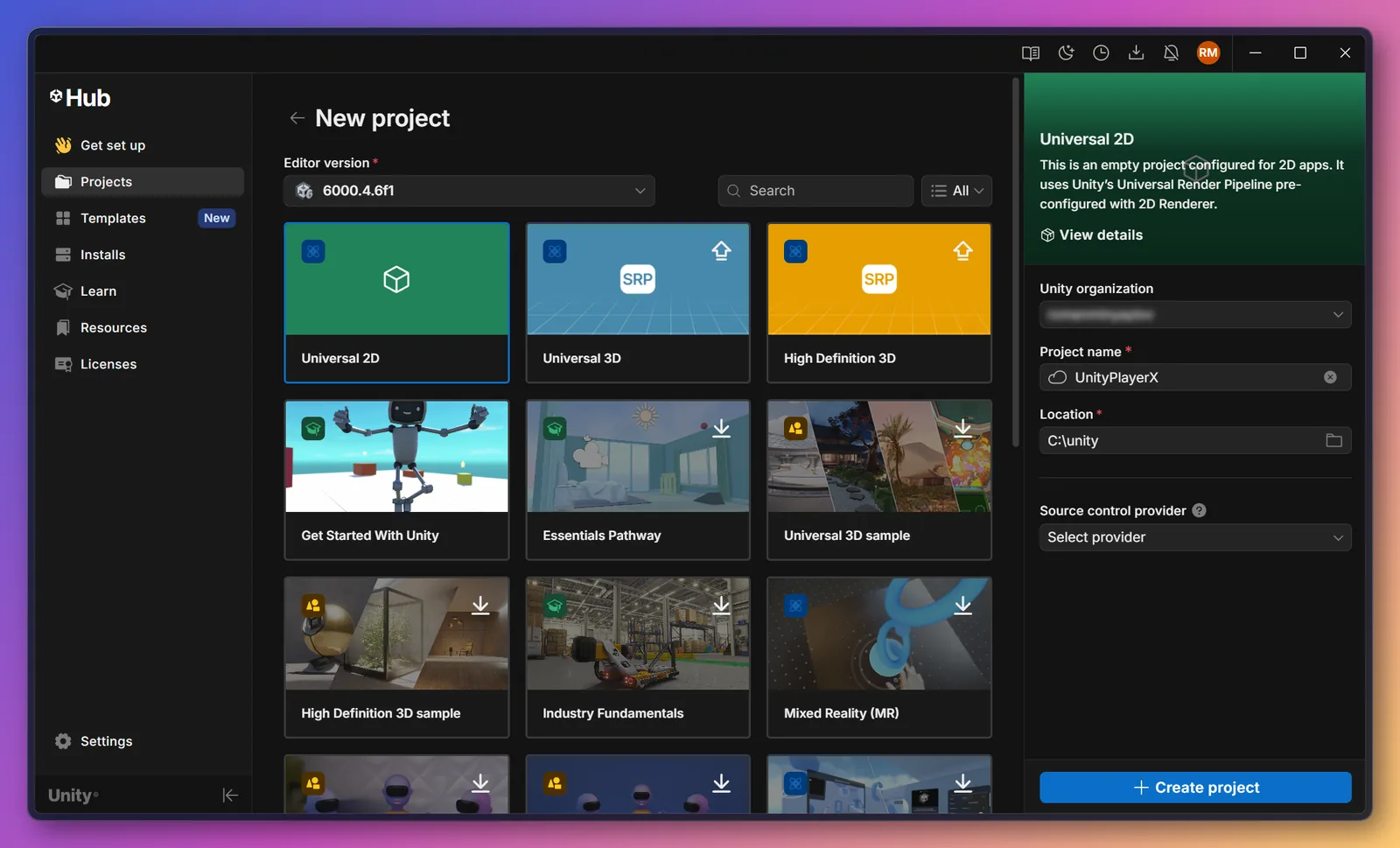
Step 1 — Create or open a Unity project
Use an existing Unity 6 project or create a new one (any template). Keep the project root on a short NTFS path (see the warning above).
The sample scenes render video into a uGUI RawImage, so the project needs the uGUI package (com.unity.ugui) — every Unity Hub template ships it, but a hand-trimmed project may not. No render pipeline is required: the scenes work on Built-in, URP and HDRP alike.
Step 2 — Import the package
In the Editor: Assets → Import Package → Custom Package…, select the downloaded .unitypackage, and click Import (keep all items checked).
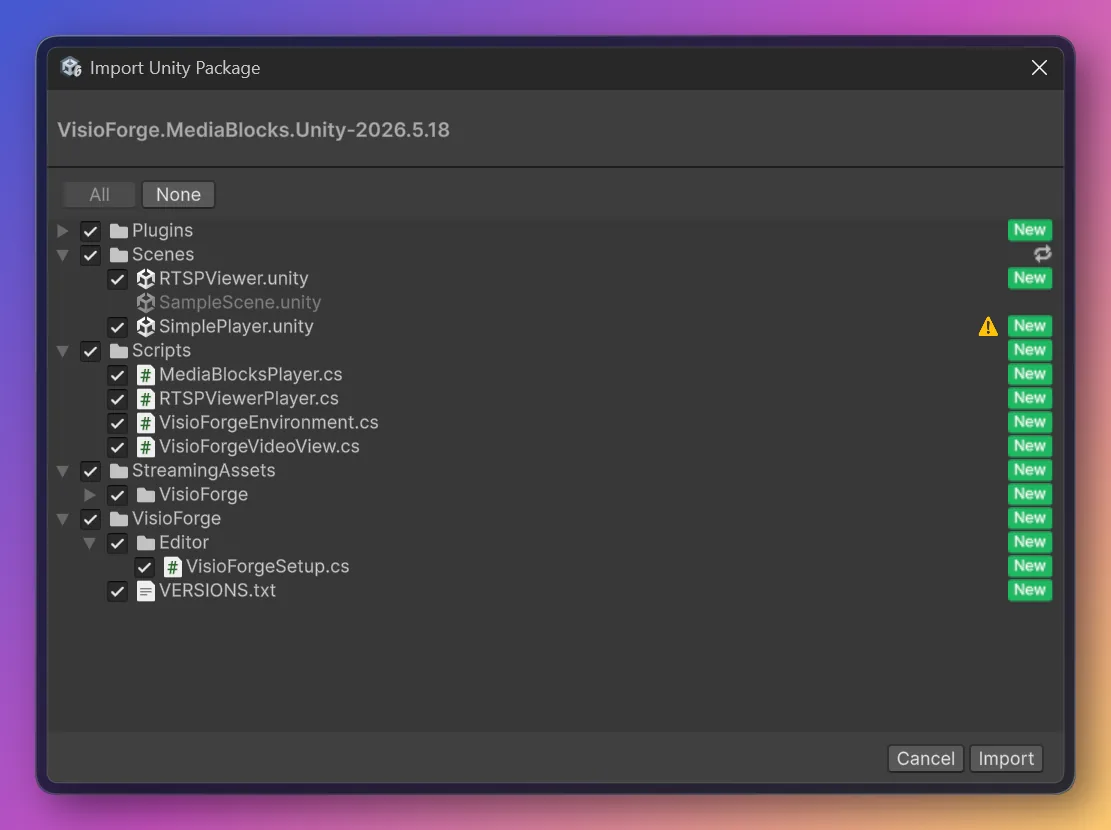
The package adds:
| Content | Location | Purpose |
|---|---|---|
Managed SDK (netstandard2.1) + dependencies | Assets/Plugins/ (+ Android/, macOS/, iOS/Managed/ subfolders) | the Media Blocks SDK .NET assemblies, per platform |
| Windows native runtime | Assets/StreamingAssets/VisioForge/x64/ | Windows GStreamer libs and plugins |
| Android native runtime | Assets/Plugins/Android/libs/arm64-v8a/ | monolithic libgstreamer_android.so + Java AAR |
| macOS native runtime | Assets/Plugins/macOS/ | universal dylibs (arm64+x86_64) |
| iOS native runtime | Assets/Plugins/iOS/GStreamerX.framework/ | embedded framework (device arm64) |
| IL2CPP preservation | Assets/VisioForge/link.xml | type / member preservation for Android & iOS |
| Reusable scripts | Assets/Scripts/ | VisioForgeEnvironment and VisioForgeVideoView helpers plus the six sample scripts |
| Six sample scenes | Assets/Scenes/ | SimplePlayer, RTSPViewer, MediaPlayerX, IPCameraX, VideoCaptureX, VideoEditX — see the samples overview |
| One-time setup helper | Assets/VisioForge/Editor/ | applies the two required project settings |
Per-flavor PluginImporter metadata on every native file tells Unity which Build Target each binary belongs to — switching the Build Target in Build Profiles automatically picks the right slot at build time.
Step 3 — Apply the required project settings
On first import the setup helper shows a dialog asking to apply the required project setting. Click Apply — the setting is configured for you.
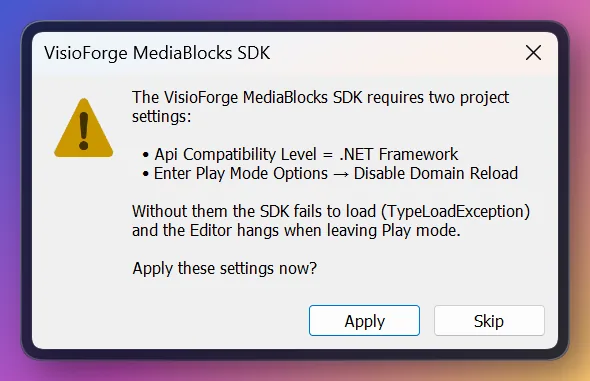
This setting is mandatory — the SDK will not work without it:
- Api Compatibility Level = .NET Standard 2.1 — the SDK ships as
netstandard2.1assemblies; the legacy.NET Frameworksetting cannot load them.
Unity's default Enter Play Mode behavior (Domain + Scene Reload) is fully supported — you do not need to disable Domain Reload. The SDK survives the Editor's Play/Stop reloads.
For mobile targets, also switch Scripting Backend to IL2CPP — Mono is not supported on Android or iOS by Unity itself. See Build for Android and Build for iOS for the per-target Build Profile checklists.
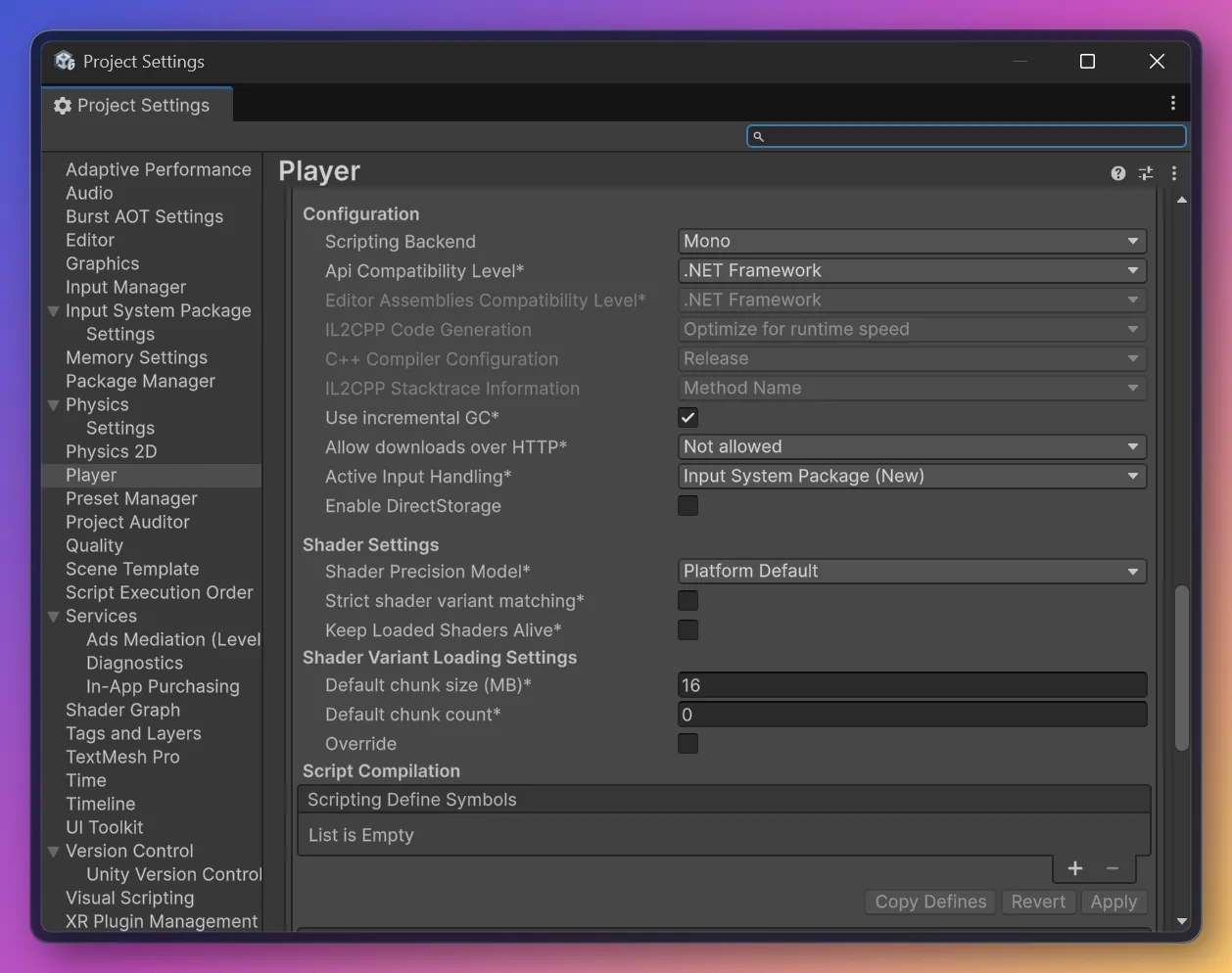
Step 4 — Set the setting manually (only if you clicked Skip)
If you clicked Skip, set it by hand:
- Api Compatibility Level = .NET Standard 2.1 Edit → Project Settings → Player → Other Settings → Configuration → Api Compatibility Level.
Step 5 — Run a sample scene
In the Project window open Assets/Scenes/SimplePlayer.unity (double-click it — do not stay on the empty default scene), select the RawImage GameObject, set its File Path in the Inspector, and press ▶ Play. Video renders in the Game view and audio plays through the system default device.
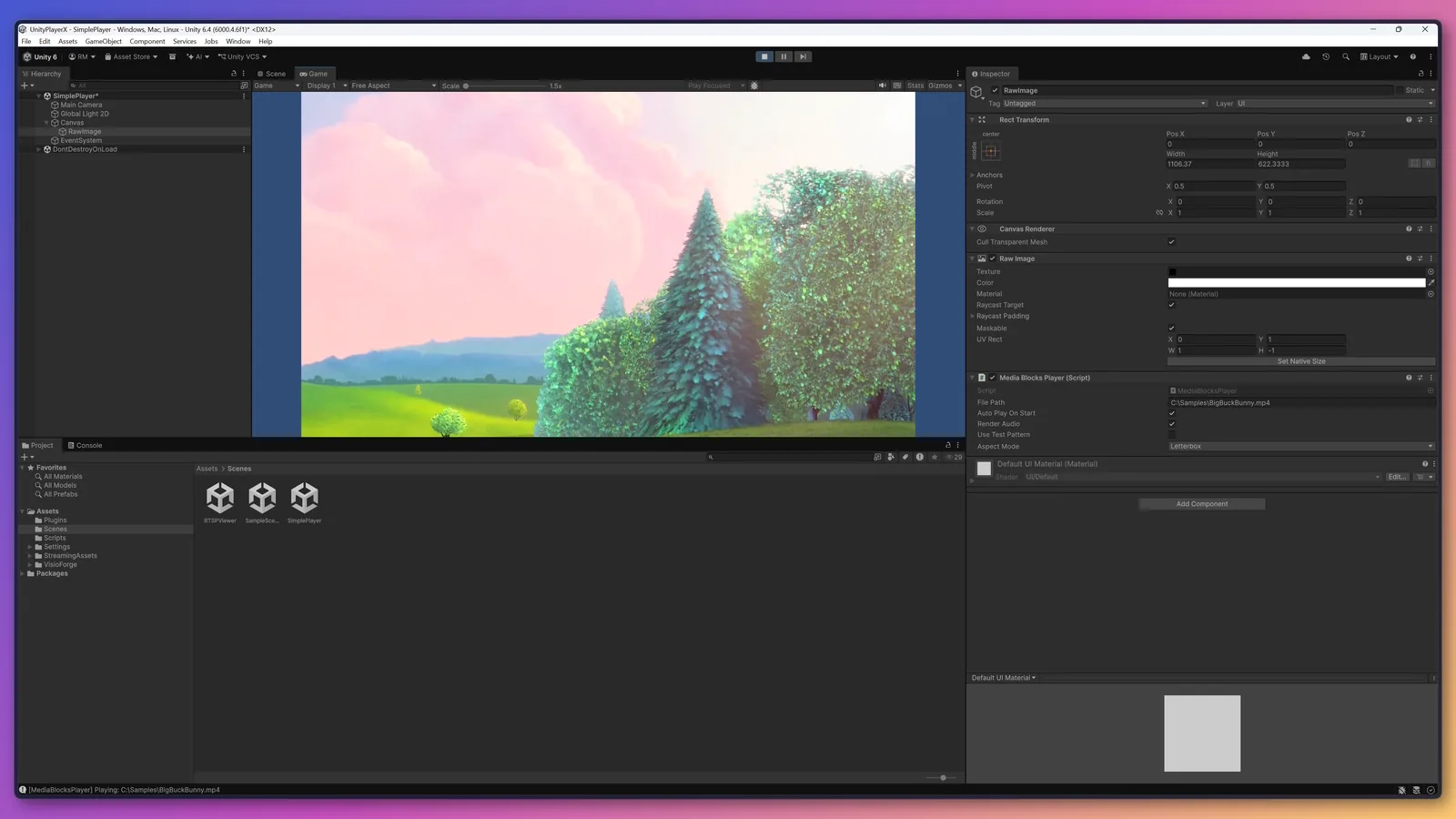
The RawImage looks empty until you press Play
The video texture is created at runtime, so the RawImage is blank (white) in edit mode.
Next, read the usage guides:
- Quickstart — the five-step path from import to playback.
- Using VisioForge in Unity — the overview with the full product and sample catalog: file playback, RTSP / IP camera, webcam capture, and timeline editing.
Build for a target platform
The cumulative .unitypackage contains every supported platform, but each Build Target has its own settings and gotchas. Read the matching page:
- Build for Windows — x86_64 Editor + Standalone Player.
- Build for Android — IL2CPP arm64, AndroidManifest permissions.
- Build for macOS — Universal arm64+x86_64, code-signing.
- Build for iOS — Xcode export workflow, Info.plist permissions.
Uninstalling or upgrading the package
A .unitypackage has no uninstaller — remove the files manually.
- Close the Unity Editor first — it locks the native DLLs and the
Library/cache. - Delete the VisioForge content from
Assets/: Assets/StreamingAssets/VisioForge/— the Windows native runtime.Assets/Plugins/Android/libs/arm64-v8a/libgstreamer_android.so,libVisioForge_Core.so, andAssets/Plugins/Android/visioforge-gstreamer.aar— the Android runtime.Assets/Plugins/macOS/*.dylibandAssets/Plugins/macOS/ca-certificates.crt— the macOS runtime.Assets/Plugins/iOS/GStreamerX.framework/andAssets/Plugins/iOS/libVisioForge_Core.a— the iOS runtime.Assets/Plugins/(withAndroid/,macOS/,iOS/Managed/subfolders) — the managed assemblies, per platform.Assets/VisioForge/— the one-time setup helper andlink.xml.- The scripts in
Assets/Scripts/: theVisioForgeEnvironment.csandVisioForgeVideoView.cshelpers plus the six sample scripts —MediaBlocksPlayer.cs,RTSPViewerPlayer.cs,MediaPlayerXPlayer.cs,IPCameraXViewer.cs,VideoCaptureXRecorder.cs,VideoEditXRenderer.cs(plus their.meta) — keep any scripts of your own that live in the same folder. - The sample scenes in
Assets/Scenes/:SimplePlayer.unity,RTSPViewer.unity,MediaPlayerX.unity,IPCameraX.unity,VideoCaptureX.unity,VideoEditX.unity. - Delete the project's
Library/folder (next toAssets/) to clear the cached import state. Unity regenerates it on the next open (the first launch is slower).
Upgrading: import the new .unitypackage over the old one — the managed-plugin GUIDs are deterministic, so Unity overwrites the existing assets in place and references are preserved. If you are coming from a much older package or see duplicated DLLs in Assets/Plugins/, do a clean removal (steps above) first, then import the new package.
Troubleshooting
| Symptom | Cause | Fix |
|---|---|---|
TypeLoadException on play | Api Compatibility Level is .NET Framework, not .NET Standard 2.1 | Set it to .NET Standard 2.1, or re-import and click Apply |
| Editor hangs on "Reloading domain" on Play/Stop | An SDK build older than this release, before the Editor reload guard was added | Update to the latest SDK — its reload guard stops the GStreamer main-loop thread automatically, so Domain Reload is safe |
| Editor crashes on the 2nd Play | VisioForgeX.DestroySDK() was called on Stop, then re-initialized | Don't shut the SDK down on Stop — it is process-global and reused; dispose only the per-play pipeline |
| Native runtime not found | Package imported partially, or wrong Build Target's flavor missing from the package | Re-import the package with all items checked; confirm the package contains the platform you targeted |
| No video, errors in the Console after import | The Editor needs a clean reload after the runtime is staged | Restart the Editor |
DllNotFoundException on Android | Scripting Backend is Mono | Switch to IL2CPP |
For the full per-symptom reference, see Troubleshooting.
Legacy net48 Windows-only flavor
I have an older Unity LTS pinned to Mono — what about the net48 build?
The original Windows-only build of the package targets .NET Framework 4.8 managed assemblies and is still produced for projects that cannot move to .NET Standard 2.1 (for example, Unity 2019.4 LTS without the modern Api Compatibility option). It ships as a separate .unitypackage with NET48 in the filename, contains only the Windows-x64 native runtime, and uses .NET Framework as the Api Compatibility Level. New projects should use the netstandard2.1 package described above — it covers the same Windows-x64 use case plus every other platform, and Unity 6 defaults to it. If you have a hard requirement for the net48 build, contact support for the latest download link.
Frequently Asked Questions
Can I install the SDK in Unity via NuGet?
No. Unity does not run NuGet restore, and the SDK ships hundreds of native files that NuGet would not lay out for Unity. The .unitypackage bundles everything — managed assemblies, every platform's native runtime, scripts, and scenes — so you import a single file instead.
Do I need to install GStreamer or any other system dependency?
No. The package is fully self-contained; everything the SDK needs is inside it. A system GStreamer install on your machine is not required and is not used by the bundled runtime — on the contrary, VisioForgeEnvironment.Configure() actively prunes any system GStreamer from the process search path to avoid a double-init.
Which VisioForge SDKs are included?
The package ships four products from one shared netstandard2.1 managed surface: the Media Blocks SDK .NET pipeline and the high-level Media Player SDK .NET (MediaPlayerCoreX), Video Capture SDK .NET (VideoCaptureCoreX), and Video Edit SDK .NET (VideoEditCoreX) engines. Each ships one or more ready sample scenes — see the samples overview.
Does the same package work on Windows ARM64?
The package's Windows native runtime is x86_64 only — there is no ARM64 native build today. Run it via x64 emulation only at your own risk; production use on Windows 11 ARM64 is not exercised.
Can I open the same package in the Mac-host Editor?
Yes — if the package was built with -IncludeMacOS. The cumulative variant published at files.visioforge.com/unity/ always contains the macOS flavor. A Windows-only variant opened in a Mac Editor surfaces a clear [VisioForge] Native runtime folder not found at '…' for runtime platform OSXEditor message; see Bootstrap and lifecycle.
See Also
- Using VisioForge in Unity — overview of how the integration works
- Quickstart — five-step path to a playing video
- Bootstrap and lifecycle — what
Configure()andInitializeSdk()do - Play a media file in Unity — the file-playback sample
- View an RTSP camera in Unity — the RTSP sample
- Capture a webcam · Edit and render — the CoreX engine samples
- Platform matrix — feature support by Unity platform
- Media Blocks SDK .NET overview — the full block catalog
- Installation guide — install the SDK in other .NET project types