Play a media file in Unity
Media Blocks SDK .Net Media Player SDK .Net
There are two ways to play a local file or a network URL in Unity, and the package ships a ready scene for each. Both render into a Unity RawImage and run on Windows, Android, macOS Standalone, and iOS. This article assumes you have imported the Unity package and applied the two required project settings; see Using VisioForge in Unity first.
Two scenes, two engines
| Scene | Engine | Level | Best for |
|---|---|---|---|
SimplePlayer | MediaBlocksPipeline (Media Blocks SDK) | Low-level | Full control over the pipeline — pick your own source, sinks, effects, and encoders. |
MediaPlayerX | MediaPlayerCoreX (Media Player SDK) | High-level | Ready-made playback control — play, pause, resume, seek, volume, and rate with no manual wiring. |
Pick SimplePlayer when you want to assemble the pipeline yourself; pick MediaPlayerX when you want a player engine that already exposes transport controls. Both feed the same bundled VisioForgeVideoView, so the texture upload, aspect handling, and vertical flip are identical.
SimplePlayer — the Media Blocks pipeline
The SimplePlayer scene plays a local video file with the low-level Media Blocks SDK .NET and renders it into a RawImage.
Run the SimplePlayer scene
- In the Project window open
Assets/Scenes/SimplePlayer.unity(double-click it). - In the Hierarchy select the RawImage GameObject. The
MediaBlocksPlayercomponent is attached to it. - In the Inspector, set File Path to an absolute path to a local media file.
- Press ▶ Play — the video appears in the Game view and audio plays through the system default device.
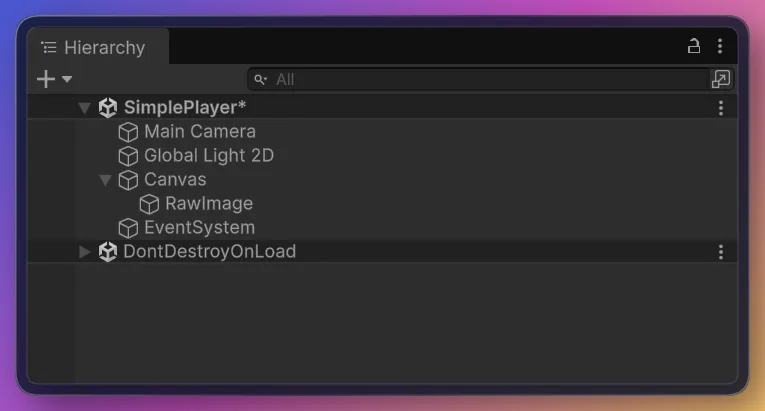
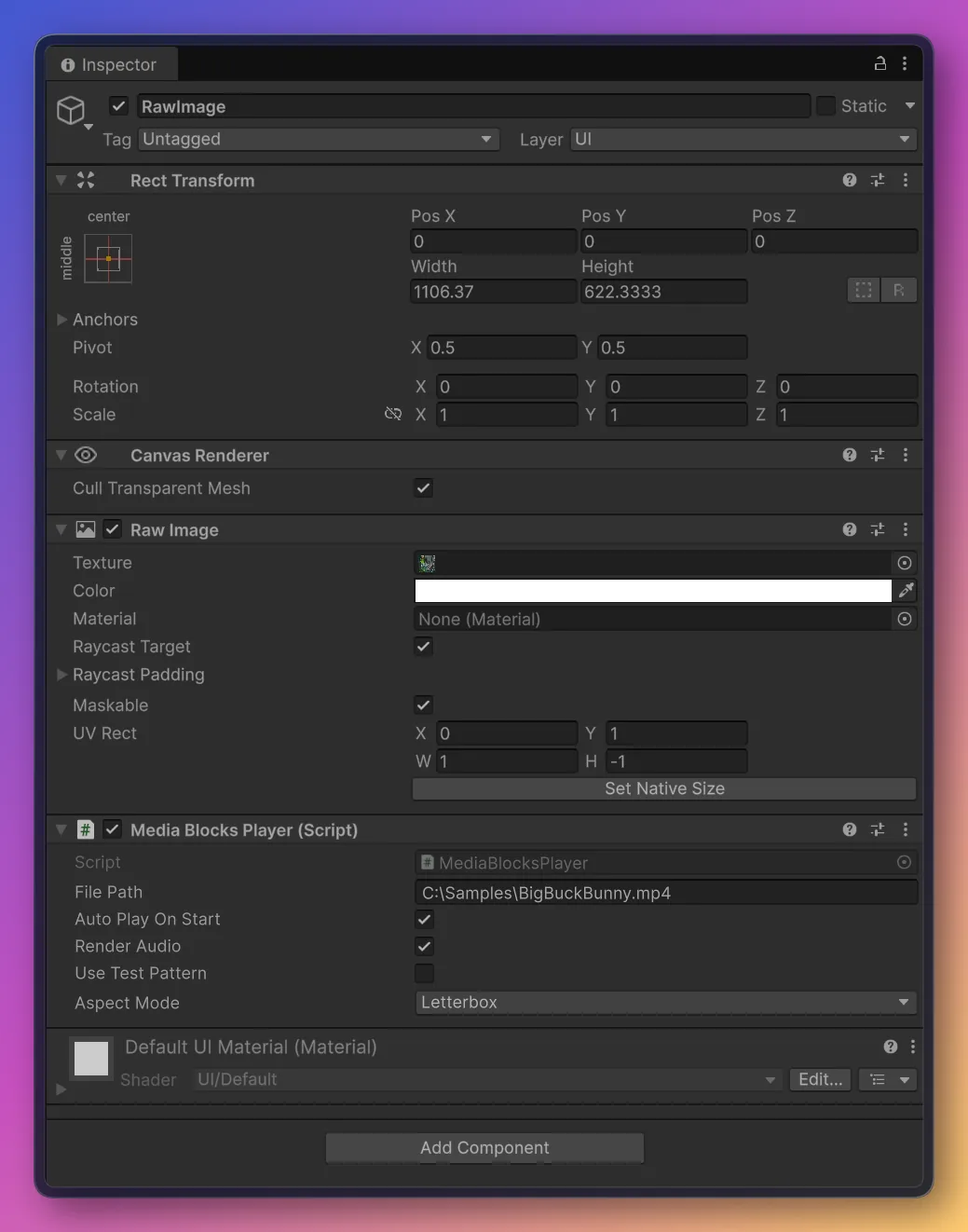
The RawImage is blank until you press Play
The video texture is created at runtime, so the RawImage shows nothing in edit mode.
Inspector fields (MediaBlocksPlayer)
| Field | Default | Description |
|---|---|---|
| File Path | C:\Samples\!video.avi | Absolute path to the media file to play. |
| Auto Play On Start | true | Start playback automatically in Start(). |
| Render Audio | true | Render audio through the system default device. |
| Use Test Pattern | false | Play a synthetic test pattern instead of the file (diagnostic baseline). |
| Aspect Mode | Letterbox | How the video is fitted into the RawImage: Stretch, Letterbox, or Crop. |
The SimplePlayer pipeline
MediaBlocksPlayer builds this pipeline:
graph LR;
    src[UniversalSourceBlock] -->|video| sink["BufferSinkBlock (RGBA)"];
    sink --> view["VisioForgeVideoView (Texture2D)"];
    src -->|audio, optional| audio[AudioRendererBlock];
The core of PlayAsync:
_pipeline = new MediaBlocksPipeline();

_videoSink = new BufferSinkBlock(VideoFormatX.RGBA);
_videoSink.OnVideoFrameBuffer += _videoView.OnFrameBuffer;

// ignoreMediaInfoReader:true skips the media pre-probe (it can fail under the Unity
// runtime); the codec is negotiated when the pipeline starts.
var settings = await UniversalSourceSettings.CreateAsync(
    filePath, renderVideo: true, renderAudio: _renderAudio, ignoreMediaInfoReader: true);

_source = new UniversalSourceBlock(settings);
_pipeline.Connect(_source.VideoOutput, _videoSink.Input);

if (_renderAudio && _source.AudioOutput != null)
{
    _audioRenderer = new AudioRendererBlock();
    _pipeline.Connect(_source.AudioOutput, _audioRenderer.Input);
}

await _pipeline.StartAsync();
UniversalSourceBlock auto-detects the container and codec. The audio branch is connected only when the file has an audio stream (_source.AudioOutput != null).
MediaPlayerX — the MediaPlayerCoreX engine
The MediaPlayerX scene plays the same files and URLs with the high-level MediaPlayerCoreX engine. Unlike the hand-built SimplePlayer pipeline, MediaPlayerCoreX gives you ready-made playback control — play, pause, resume, seek, volume, and playback rate — with no manual pipeline wiring.
The OnVideoFrameUnity event
MediaPlayerCoreX, VideoCaptureCoreX, and VideoEditCoreX expose a Unity-only event, OnVideoFrameUnity, that delivers each preview frame as tightly packed RGBA32 (Stride == Width * 4, no row padding). It is uploaded straight into a Texture2D with no pixel conversion. Subscribe to it before opening the source so the engine wires its internal frame grabber into the pipeline.
Run the MediaPlayerX scene
- In the Project window open
Assets/Scenes/SampleScene.unity. - In the Hierarchy select the RawImage GameObject — the
MediaPlayerXPlayercomponent is attached to it. - In the Inspector, set File Path to an absolute path or a URL.
- Press ▶ Play — the video appears in the Game view and audio plays through the default device.
Inspector fields (MediaPlayerXPlayer)
| Field | Default | Description |
|---|---|---|
| File Path | C:\Samples\!video.mp4 | Absolute path, or a file/http/https/rtsp/hls URL. |
| Auto Play On Start | true | Start playback automatically in Start(). |
| Render Audio | true | Render audio through the system default output device. |
| Volume | 1.0 | Initial audio volume (0..1). |
| Aspect Mode | Letterbox | How the video is fitted into the RawImage: Stretch, Letterbox, or Crop. |
The MediaPlayerX pipeline
graph LR;
    player["MediaPlayerCoreX (headless)"] -->|OnVideoFrameUnity, RGBA32| view["VisioForgeVideoView (Texture2D)"];
    player -->|audio| out["Audio output device"];
The core of PlayAsync:
_player = new MediaPlayerCoreX();

// Texture-ready RGBA32 frames straight into the view.
_player.OnVideoFrameUnity += _videoView.OnFrameBuffer;

// MediaPlayerCoreX only renders audio when an output device is set.
var outputs = await _player.Audio_OutputDevicesAsync();
if (outputs != null && outputs.Length > 0)
{
    _player.Audio_OutputDevice = new AudioRendererSettings(outputs[0]);
    _player.Audio_OutputDevice_Volume = 1.0;
}

// ignoreMediaInfoReader:true skips the media pre-probe (it can fail under the Unity runtime).
var source = await UniversalSourceSettings.CreateAsync(
    filePath, renderVideo: true, renderAudio: true, renderSubtitle: false,
    deepDiscovery: false, ignoreMediaInfoReader: true);

await _player.OpenAsync(source);
await _player.PlayAsync();
PauseAsync, ResumeAsync, and Position_SetAsync(TimeSpan) give you transport control; the sample exposes them as PauseAsync(), ResumeAsync(), and SeekAsync(position).
Use it in your own scene
You do not have to use a sample scene:
- Add a Canvas → Raw Image (GameObject → UI → Raw Image).
- Select the Raw Image and Add Component →
MediaBlocksPlayer(Media Blocks pipeline) orMediaPlayerXPlayer(MediaPlayerCoreX engine). - Set File Path and press ▶ Play.
The aspect handling (Stretch / Letterbox / Crop), the RawImage layout, and the vertical flip are handled for you by the bundled VisioForgeVideoView — you do not write any texture code. To switch the same GameObject to RTSP playback, use RTSPViewerPlayer or IPCameraXViewer (see View an RTSP camera).
Per-platform Build Settings
Both scenes run unchanged on every supported platform. Switch Build Target and apply the matching settings:
| Setting | Value |
|---|---|
| Architecture | x86_64 |
| Api Compatibility Level | .NET Standard 2.1 |
| Scripting Backend | Mono (default) or IL2CPP |
Local file paths use the standard Windows form (C:\Samples\video.mp4). See Build for Windows for the full checklist.
| Setting | Value |
|---|---|
| Architecture | arm64-v8a (uncheck ARMv7) |
| Api Compatibility Level | .NET Standard 2.1 |
| Scripting Backend | IL2CPP (mandatory) |
| Internet Access | Require (for network URLs) |
Local files live under Application.persistentDataPath or Application.streamingAssetsPath — absolute Windows paths are not portable. To read media from external storage, declare READ_MEDIA_VIDEO / READ_MEDIA_AUDIO in AndroidManifest.xml. See Build for Android for the full checklist.
| Setting | Value |
|---|---|
| Architecture | Universal arm64 + x86_64 |
| Api Compatibility Level | .NET Standard 2.1 |
| Scripting Backend | Mono (default) or IL2CPP |
Local file paths use Unix form (/Users/<you>/Movies/video.mp4). See Build for macOS for code-signing and notarization notes.
| Setting | Value |
|---|---|
| Architecture | device arm64 (Simulator not supported) |
| Api Compatibility Level | .NET Standard 2.1 |
| Scripting Backend | IL2CPP (mandatory) |
| App Transport Security | Add an ATS exception for plain-HTTP/RTSP URLs |
Local files must live inside the app sandbox — typically Application.persistentDataPath (the Documents folder) or Application.streamingAssetsPath (read-only inside the .app bundle). See Build for iOS for the Xcode workflow.
Frequently Asked Questions
Which scene should I use — SimplePlayer or MediaPlayerX?
Use SimplePlayer (MediaBlocksPipeline) when you want to build the pipeline yourself — add effects, multiple sinks, recording, or custom sources. Use MediaPlayerX (MediaPlayerCoreX) when you want a player engine that already provides seeking, pause/resume, duration, audio device selection, and rate control as ready-made methods.
Which video and audio formats can it play?
The package bundles FFmpeg/libav, so common formats decode out of the box — MP4, MKV, AVI, MOV with H.264/H.265, MPEG-4, plus MP3/AAC audio, among others. Both engines auto-detect the format.
Can it play network streams?
Yes. MediaPlayerX takes an http/https/rtsp/hls URL directly in File Path (UniversalSourceSettings handles both local files and URLs). SimplePlayer plays local files; for a dedicated live-camera pipeline use View an RTSP camera.
How do I seek or pause?
On MediaPlayerX, call SeekAsync(TimeSpan), PauseAsync(), and ResumeAsync() on the component — they wrap Position_SetAsync, PauseAsync, and ResumeAsync on MediaPlayerCoreX. The low-level SimplePlayer does not expose transport controls; rebuild the pipeline to change source.
Why does MediaPlayerX need an audio output device set?
MediaPlayerCoreX renders audio only when Audio_OutputDevice is set. The sample enumerates output devices with Audio_OutputDevicesAsync() and selects the first one. SimplePlayer instead routes audio through an AudioRendererBlock.
How do I control how the video fits the RawImage?
Use the Aspect Mode field on either component: Stretch (fill, may distort), Letterbox (fit with bars), or Crop (fill and crop the overflow).
See Also
- Using VisioForge in Unity — package overview, setup, and how rendering works
- View an RTSP camera in Unity — the live RTSP / IP camera scenes
- Capture a webcam in Unity — the VideoCaptureCoreX recorder sample
- Edit and render in Unity — the VideoEditCoreX timeline sample
- Media Blocks SDK .NET overview — the full block catalog