View an RTSP camera in Unity
Media Blocks SDK .Net Video Capture SDK .Net
There are two ways to view a live RTSP / IP camera stream in Unity, and the package ships a ready scene for each. Both render into a Unity RawImage and run on Windows, Android, macOS Standalone, and iOS. This article assumes you have imported the Unity package and applied the two required project settings — see Using VisioForge in Unity first.
Two scenes, two engines
| Scene | Engine | Level | Best for |
|---|---|---|---|
RTSPViewer | MediaBlocksPipeline (Media Blocks SDK) | Low-level | Full control over the pipeline — pick your own sinks, effects, and outputs. |
IPCameraX | VideoCaptureCoreX (Video Capture SDK) | High-level | Ready-made capture engine — adds recording outputs, snapshots, audio routing, and overlays on top of the same stream. |
Pick RTSPViewer when you want to assemble the pipeline yourself; pick IPCameraX when you want a capture engine that can also record while it previews. Both feed the same bundled VisioForgeVideoView, so the texture upload, aspect handling, and vertical flip are identical.
RTSPViewer — the Media Blocks pipeline
The RTSPViewer scene displays a live RTSP / IP camera stream with the low-level Media Blocks SDK .NET, rendered into a RawImage.
Run the RTSPViewer scene
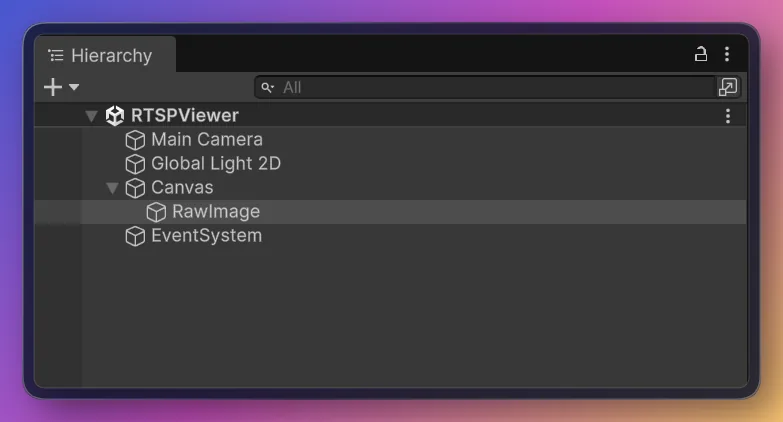
- In the Project window open
Assets/Scenes/RTSPViewer.unity(double-click it). - In the Hierarchy select the RawImage GameObject. The
RTSPViewerPlayercomponent is attached to it. - In the Inspector, set Rtsp Url (and Login / Password if the camera requires authentication).
- Press ▶ Play — the stream renders in the Game view.
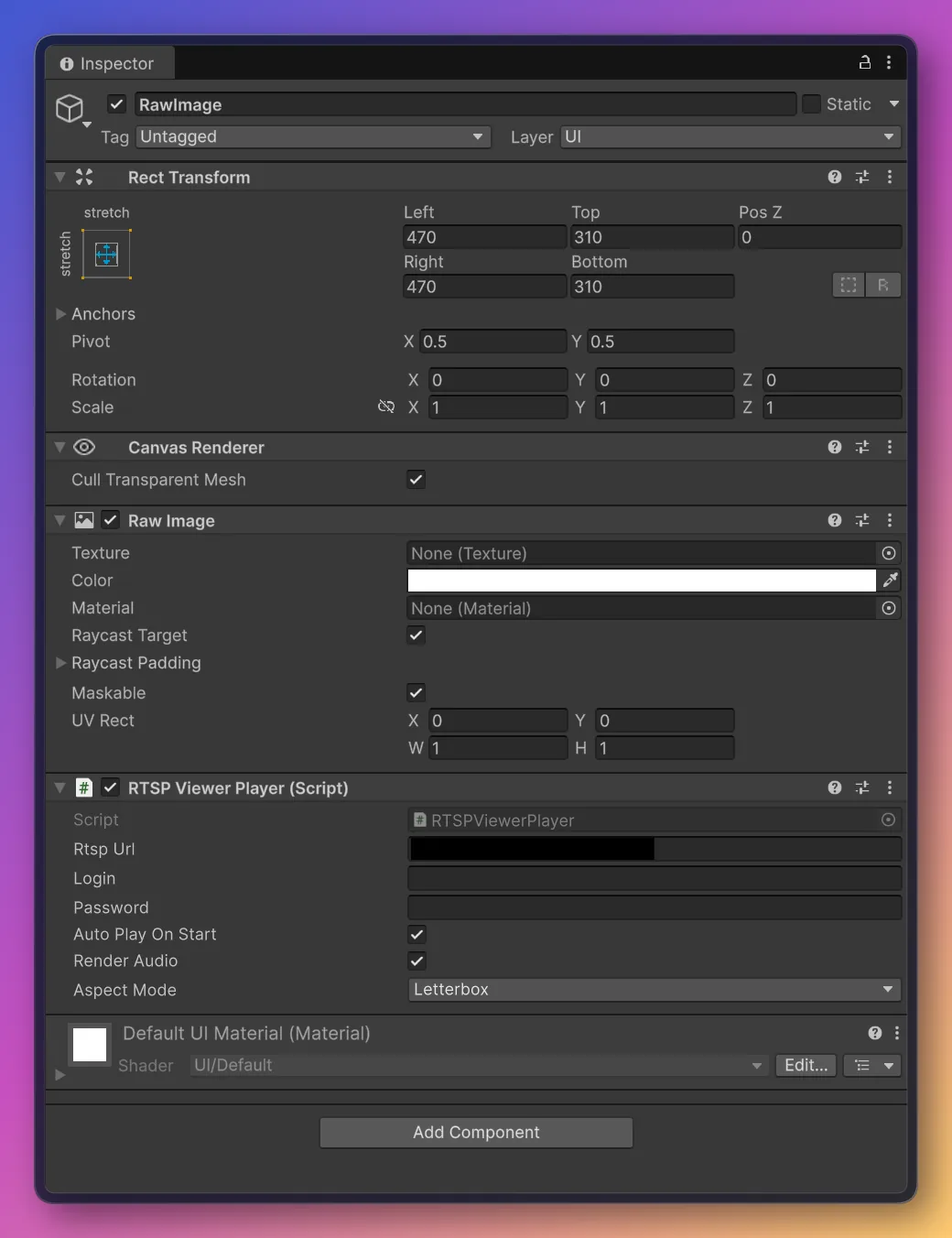
Inspector fields (RTSPViewerPlayer)
| Field | Default | Description |
|---|---|---|
| Rtsp Url | rtsp://192.168.1.10:554/stream | RTSP URL of the camera/stream. |
| Login | (empty) | RTSP username — leave empty if the stream needs no auth. |
| Password | (empty) | RTSP password. |
| Auto Play On Start | true | Connect automatically in Start(). |
| Render Audio | true | Render audio through the system default device. |
| Aspect Mode | Letterbox | How the video is fitted into the RawImage: Stretch, Letterbox, or Crop. |
The RTSPViewer pipeline
RTSPViewerPlayer builds this pipeline:
graph LR;
    src[RTSPSourceBlock] -->|video| sink["BufferSinkBlock (RGBA)"];
    sink --> view["VisioForgeVideoView (Texture2D)"];
    src -->|audio, optional| audio[AudioRendererBlock];
The core of PlayAsync:
_pipeline = new MediaBlocksPipeline();

// readInfo:false skips the media pre-probe (it can fail under the Unity runtime, and
// probing a live stream adds connect latency); the codec is negotiated when playback starts.
var settings = await RTSPSourceSettings.CreateAsync(
    new Uri(rtspUrl), login ?? string.Empty, password ?? string.Empty,
    audioEnabled: _renderAudio, readInfo: false);

_source = new RTSPSourceBlock(settings);

_videoSink = new BufferSinkBlock(VideoFormatX.RGBA);
_videoSink.OnVideoFrameBuffer += _videoView.OnFrameBuffer;
_pipeline.Connect(_source.VideoOutput, _videoSink.Input);

if (_renderAudio && _source.AudioOutput != null)
{
    _audioRenderer = new AudioRendererBlock();
    _pipeline.Connect(_source.AudioOutput, _audioRenderer.Input);
}

await _pipeline.StartAsync();
IPCameraX — the VideoCaptureCoreX engine
The IPCameraX scene views the same RTSP / IP camera with the high-level VideoCaptureCoreX engine. On top of the live preview it can record to MP4 and exposes snapshots, audio routing, and overlays — the capture-engine features the hand-built RTSPViewer pipeline does not provide out of the box.
The OnVideoFrameUnity event
VideoCaptureCoreX exposes the Unity-only OnVideoFrameUnity event: each frame arrives as tightly packed RGBA32 (Stride == Width * 4), ready for Texture2D.LoadRawTextureData with no conversion. Subscribe before StartAsync.
Run the IPCameraX scene
- In the Project window open
Assets/Scenes/SampleScene.unity. - In the Hierarchy select the RawImage GameObject — the
IPCameraXViewercomponent is attached to it. - In the Inspector set Rtsp Url (and Login / Password if the camera needs them).
- Press ▶ Play — the camera stream appears in the Game view.
Inspector fields (IPCameraXViewer)
| Field | Default | Description |
|---|---|---|
| Rtsp Url | rtsp://192.168.1.10:554/stream | RTSP / HTTP camera URL. |
| Login | (empty) | Camera user name (empty for open streams). |
| Password | (empty) | Camera password (empty for open streams). |
| Render Audio | false | Request and render the camera audio stream, if present. |
| Record To File | false | Record the stream to MP4 while previewing. |
| Output Path | (empty) | MP4 path. Empty → <persistentDataPath>/ipcamera.mp4. |
| Auto Play On Start | true | Connect automatically in Start(). |
| Aspect Mode | Letterbox | How the video is fitted into the RawImage. |
The IPCameraX pipeline
graph LR;
    rtsp["VideoCaptureCoreX (RTSP source)"] -->|OnVideoFrameUnity, RGBA32| view["VisioForgeVideoView (Texture2D)"];
    rtsp -->|optional record| mp4["MP4Output (H264 + AAC)"];
The core of PlayAsync:
_capture = new VideoCaptureCoreX();

// readInfo:false skips the media pre-probe (it can fail under the Unity runtime and adds latency).
var rtspSettings = await RTSPSourceSettings.CreateAsync(
    new Uri(rtspUrl), login, password, audioEnabled: renderAudio, readInfo: false);
_capture.Video_Source = rtspSettings;

// Texture-ready RGBA32 frames straight into the view.
_capture.OnVideoFrameUnity += _videoView.OnFrameBuffer;

if (recordToFile)
    _capture.Outputs_Add(new MP4Output(outputPath), autostart: true);

await _capture.StartAsync();
Use it in your own scene
Add a Canvas → Raw Image (GameObject → UI → Raw Image), select it, Add Component → RTSPViewerPlayer (Media Blocks pipeline) or IPCameraXViewer (VideoCaptureCoreX engine), set Rtsp Url, and press ▶ Play. The RawImage layout, aspect handling, and vertical flip are handled by the bundled VisioForgeVideoView. For local file playback instead of RTSP, use MediaBlocksPlayer or MediaPlayerXPlayer (see Play a media file).
Per-platform Build Settings and network permissions
Both scenes run unchanged on every supported platform — but each target has its own network-permission and Build Profile requirements.
| Setting | Value |
|---|---|
| Architecture | x86_64 |
| Api Compatibility Level | .NET Standard 2.1 |
| Scripting Backend | Mono (default) or IL2CPP |
Outbound TCP / UDP to the camera's RTSP port works with no special declaration. Windows Defender Firewall may prompt the first time the player binds a UDP socket — accept the private-network prompt. See Build for Windows for the full checklist.
| Setting | Value |
|---|---|
| Architecture | arm64-v8a (uncheck ARMv7) |
| Api Compatibility Level | .NET Standard 2.1 |
| Scripting Backend | IL2CPP (mandatory) |
| Internet Access | Require |
AndroidManifest.xml must declare:
<uses-permission android:name="android.permission.INTERNET" />
<uses-permission android:name="android.permission.ACCESS_NETWORK_STATE" />
For RTSP over UDP on a public network, Android 9+ (API 28+) also requires android:usesCleartextTraffic="true" on the <application> element if the camera is reachable only via plain RTSP / RTP without TLS. See Build for Android for the full checklist.
| Setting | Value |
|---|---|
| Architecture | Universal arm64 + x86_64 |
| Api Compatibility Level | .NET Standard 2.1 |
| Scripting Backend | Mono (default) or IL2CPP |
No additional manifest entries — outbound connections are unrestricted by default. For Mac App Store distribution add the com.apple.security.network.client entitlement to the signed bundle so the App Sandbox allows outbound network access. See Build for macOS for code-signing and notarization notes.
| Setting | Value |
|---|---|
| Architecture | device arm64 (Simulator not supported) |
| Api Compatibility Level | .NET Standard 2.1 |
| Scripting Backend | IL2CPP (mandatory) |
iOS 14+ blocks the first connection attempt to any local-network address until your app declares why. Add to Info.plist:
<key>NSLocalNetworkUsageDescription</key>
<string>This app streams video from local IP cameras on your network.</string>
For plain rtsp:// (no TLS) or http:// URLs, add an App Transport Security exception:
<key>NSAppTransportSecurity</key>
<dict>
    <key>NSAllowsArbitraryLoads</key>
    <true/>
</dict>
Public https:// / rtsps:// URLs with CA-signed certificates need no ATS exception. See Build for iOS for the full Xcode workflow.
Auto-reconnect
Both engines reconnect automatically when the stream drops, with backoff between attempts — no manual state machine in your script. For RTSPViewer, raise the timeout on the underlying RTSPSourceSettings before passing them to RTSPSourceBlock if you need a longer window; IPCameraX (VideoCaptureCoreX) handles camera reboots and brief interruptions the same way.
Frequently Asked Questions
Which scene should I use — RTSPViewer or IPCameraX?
Use RTSPViewer (MediaBlocksPipeline) for a lean view-only pipeline you assemble yourself. Use IPCameraX (VideoCaptureCoreX) when you also want recording to MP4, snapshots, audio routing, or overlays on the same stream — they are ready-made on the capture engine.
How do I provide camera credentials?
Set the Login and Password fields on either component. Leave them empty for streams that need no authentication; the credentials are sent to the camera, not embedded in the URL.
What URL format should I use?
The standard rtsp://host:port/path form your camera exposes, e.g. rtsp://192.168.1.21:554/Streaming/Channels/101 (Hikvision) or rtsp://192.168.1.22:554/cam/realmonitor?channel=1&subtype=0 (Dahua). Check your camera's manual for its exact stream path.
Does it record the camera?
IPCameraX does — enable Record To File to add an MP4Output alongside the preview. RTSPViewer is view-only; add a recording branch to its pipeline yourself if you need it.
What if the camera has no audio?
Both work as video-only. The audio branch is connected only when the stream actually carries audio, so a video-only camera needs no changes.
Can I display several cameras at once?
Yes. Add a RawImage with its own RTSPViewerPlayer or IPCameraXViewer for each camera; each builds an independent pipeline.
See Also
- Using VisioForge in Unity — package overview, setup, and how rendering works
- Play a media file in Unity — the local file / URL playback scenes
- Capture a webcam in Unity — local-camera capture (Windows / macOS)
- RTSP streaming guide — RTSP across the VisioForge .NET SDKs
- IP camera brands directory — tested camera URLs and settings
- Media Blocks RTSP player in C# — a non-Unity RTSP example